Axis Range
Creating your own bar chart web component is challenging. There are lots of different parts to work out, lots of possible configurations to take into account, and puzzling calculations you have never needed to think about before. There is something I have seen a lot in charts, something I have never really thought about before, how do you come up with those Y-axis values and how do you line them up. How are the range of values worked out? This was a total mystery to me, and there was nothing I could find online, so I had to try and work it out myself.
So, what am I talking about? Take a look at some examples below.
Here I have 4 Y-Axis charts ranging from zero up to different end values. They are placed inside the chart that is 250px high. The numbers are spaced evenly. With the last one, the ending value is 900 but the chart shows the value 1000. Now lets see the same Y-Axis but lets change the height to 350px.
Now there is more room for more values to be shown in the Y-Axis, which means it can show more values at different spacings. This is great, but how on earth do I create this?
Information
Let's take a look at what is required first. I have a range of values I want a Y-Axis for. This will be spread out over a certain length of pixels. I also want some padding on the ends so that the top value looks nicer.
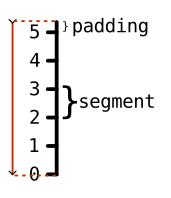
The size of the segments will need to be taken into account. Look at the below example.
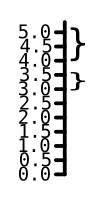
Here the segments are too close to each other. I will need to give a minimum size a segment can be to stop this from happening.
I want a single function that I can call that returns a list of segments, containing the pixel location and the value amounts. The function looks like this.
The minValue and maxValue parameters are the minimum and maximum values that the chart will show. The pixelLength parameter is the total number of pixels the segments are to be placed in. The parameter minSegmentSize is the smallest size a segment can be (in pixels). The endPadding parameter is the size of the padding used at the end (or start) of the range, where the value does not end or start at zero.
Denominator
So where do we start, how is it even possible to do this? Well, the first thing we need to do is calculate the range of values between the minimum and the maximum values. From this we need to start to work out what the denominator value is. Think of the denominator as the gap between the segments. If the range is 5 (0 to 5) then the gap between each segment is 1. But this is only the starting point.
In fact, the starting denominator value is based on the magnitude of the range value. The larger the value, the bigger the magnitude will be, and therefore the greater the segment gap is. This is shown in the table below.
The denominator value is a multiple of 1 with either zeros after it for larger numbers or after the decimal point for smaller numbers. So, for the values 0 to 5, the range is 5, and the denominator would end up as 1. But this is only the start. What if the values were 0 to 1, what would it look like?
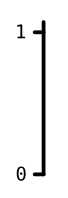
There is one large gap between 0 and 1. At this point the denominator could be reduced so that it can fit in more segments.
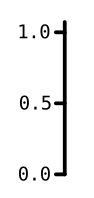
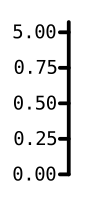
The denominator has been halved from 1 to 0.5. This allows the extra segments to be placed, but the gap is still too large. Therefore the denominator has been halved again to 0.25. The end result looks better. But how do we know when to stop halving the denominator?
Here we are looping until we have reached a limit. The first part is to work out the number segments that could fit within the range, using the current size of the denominator. This segment count is then used to work out the size of a single segment in pixels. If this segment pixel value is less than the minimum segment size value, then the process breaks from the loop. At this point the denominator is just below the required limit.
Now at this point we need to do the same thing but in the other direction. We need to increase the denominator until the size of the segment in pixels is over the minimum segment size limit. This whole process of decreasing and then increasing the denominator by a factor of 2, will search for and find the perfectly fitting denominator value to use.
Top & Bottom Values
We have the perfect denominator for our range of values, but what is the starting value at the bottom and the ending value at the top? For a good starting point at the bottom the value needs to be below the minimum value (the starting value) so that the chart will not cross over it. For the ending point at the top, the same type of thing is needed, where a good value would be just higher than the maximum value (the ending value), to stop the chart from going over this limit.
This is the code that is used to work out the top and bottom values. They both start at zero and will only be adjusted if the minimum or maximum values are not zero themselves. For the bottom value, we take the minimum value (the starting value) and divide it by the denominator and round it to the lowest amount. This is then multiplied by the denominator again, to get the final bottom value. It's an odd math trick to calculate the next denominator multiple below any given value. The same is done with the top value but instead of using the floor function it uses the ceil function.
Remaining Parts
Before we can create the list of segments, there are some additional parts to create. We need to take the end padding into account. If the range starts at zero then there is no padding required at that point, but if the range does not start or end on zero then some extra padding is added. This stops the Y-Axis ending exactly on the top edge of the chart, but gives a nice gap at the top.
The first part of this is to set the pixel range we can use. This needs adjusting if the minimum or maximum values are zero or not. Now that we have the length of pixels we can use, we need to workout the size of each segment in pixels.