On this page
Making a Game
Hitting the Wall
I have been working at this chess library for a number of months now and I have gotten to the point where I am somewhat bored and fed up with it. I started with enthusiasm, with an element of excitement, looking forward to every challenge and mystery that awaited me. Now every line of code is an uphill struggle, every sentence logging my progress feels like I have writer's block, and all I want to do is move on to something new and enjoyable. I have reached the point where I need some special sauce, that extra motivation, that drive to continue on.
Some odd things can start to happen towards the end of a project. I can find myself getting lazy and doing a poor job. No thought goes into naming functions and variables. Comments are incomplete. User interfaces start to look amateurish. Testing becomes patchy, or gets delayed, or is completely omitted altogether. I start to rush to the end, and as a result overall quality reduces, and bugs start to find their way in.
Every project has that point where you want to stop. Watching a film, playing a game, or even meeting other people feels like a better option. Why on earth did I even start all this? It feels impossible to do anything. If it was my job then I would understand, but I'm doing this by choice, for myself, and for some reason I'm doing it for fun. It doesn't feel like fun now, it did at the start, will it again?
I would recommend taking a little time away from the project, 2 or 3 days, no more than a week. It would be best to not start anything new however, or you will never return, and everything you have done so far will be a total waste of time. If you are away for too long then you risk forgetting how the whole project works, what each module does, how it all fits together, and you'll have to relearn everything from scratch.
A software developer will need to have a built-in level of grit and determination to see a project through to the end. This talent, quality, still, or whatever you call it, needs to increase as you grow and improve over time. The last mile is the hardest, especially when you don't know how long the race is, and you wanted to stop yesterday.
User Interface
At this point I technically have everything I need to run a game of chess with a computer player. However, it would be nice if the user had a chess board, with pieces, and a way to interact with it, to actually play a game of chess.
This will be a basic chess board, nothing super fancy, 2D images for pieces (nothing in 3D) and web based. It will show how the chess library is used and may end up being fun to play. I will build a web component, which is my go-to web base tool for making anything user interactive related, and is a better solution than using the latest fancy framework.
A web component uses a HTML tag name, but this is the part where I spend too much time thinking about what name to give. It cannot be a single word, so maybe "chess-game", "chess-board", "web-chess" or "chess-web" perhaps?
I start off creating a web component by adding the basic parts needed.
The class needs to derive from HTMLElement, and because of this the constructor needs to call the super function before it does anything else.
The web component, also known as a custom element, needs to be registered, so that the ChessGame class is linked to the <chess-game> HTML tag.
The connectedCallback and disconnectedCallback functions are called by the browser when a chess game web element is
attached to or removed from the DOM (document object model).
The web component requires some inner HTML and CSS to control how the internal parts are structured and styled. These could be added inside the JavaScript file as static constants, but I find it better to keep the HTML and CSS in their own separate files. To do this I have created the "chess-game.html" and "chess-game.css" files. These will need to be loaded in when the web component is first created.
The _loadCss function is using the async keyword, which allows me to use await to perform an asynchronous task and
wait for it to be done before continuing to the next task.
I first check to see if the CSS style sheet already exists.
There only needs to be one, so it is stored as a global (static) object that can be reused any number of times.
If it does not exist then I continue to fetch the CSS file and create the CSS style sheet object.
The _loadHtml function gets the HTML text data and stores it for later use.
It is similar to the CSS function.
These two functions are used within _load and are called at the same time using the Promise.all function.
After both have finished loading, the inner HTML of the shadow DOM is set, along with its CSS style sheet.
Other tasks will then need to be performed after this, to create and set up all the other parts of the web component.
Making the Board
Now that I have made a start to the web component, I can start to build out all the other parts required, but what exactly will I need to add? I have a rough idea of what is needed, but when it comes to web components, I tend to go into building them not really knowing what is required, sort of working my way through it not being sure what the end result will look like. Here are my current ideas.
- Board grid where the pieces can be placed.
- Information bar with current player, computer progress, end results, etc.
- When the human is to play, selecting their piece will highlight it and any valid and invalid moves.
- Selecting a valid possible move will trigger a move.
- When a human or computer performs a move, there will be a move animation that highlights the from and to squares, making them flash, and then sets the new piece locations. The piece will not slide across the board.
- The computer player config can be set, but the standard one is used by default.
- There will be functions to start a new game and cancel the computer player, and maybe some others too.
- Each piece has its own SVG files. This may allow for different piece designs in the future.
Board and Status
I want to create a board with a status bar underneath it that grows to fix the available space but will still remain square in shape. This means that there will be gaps at the top and bottom, or if viewing it in landscape, with gaps left and right of it. Resizing the page will automatically grow and shrink the board in what is called a "dynamic" way, so that it works on any size of screen.
The internal HTML of the web component looks very basic to start with, but it will be added to as I progress.
To get the board to automatically grow to fit the available space, I need to set some CSS properties.
The base element needs to fill all the parent's hosts space, which is done by setting the width and height to 100%.
Inside this is the auto grow element will fill its parent but keep to the aspect ratio given.
If it was only showing the board, without the status, then the aspect ratio would be “1 / 1” (square),
but because I need to include a status area at the bottom, which is half the height of a square,
therefore the ratio is 8 by 8.5, or after doubling the values "16 / 17".
In the base class I have also included the direction property. This is used to make sure the grid is ordered from left to right. This is not an issue for people who live in parts of the world where their main language reads in a left to right order, but if you are seeing the page in some parts of the world where they read from right to left (middle east for example), then the grid would also be ordered that way. The end result would have been that the chess pieces would be shown in a mirrored order, with the king and queen the wrong way round.
Inside this I have the board, which contains the squares (which contains the chess pieces), and the status bar. I am using a grid, containing a single column, and two rows, one for the board (16 units high) and the other for the status element (1 unit high). The board is going to be 8 squares tall, with the status being half a square tall, which again after doubling it, you end up with "16fr 1fr". The board and status elements are given the grid column and row values to make sure they are placed in the correct location.
The board is set up to be a grid of 8x8 squares. This is done using the grid template for 8 1fr columns and 8 1fr rows. There are no squares inside the board to start with, they will need to be created manually when the web component is created.
After the HTML and CSS parts have been loaded and attached into the web component, it is possible to manually add in the inner board square elements.
This is done by calling the _createBoard function inside the _load function, after the HTML parts are set.
The first part is to get the board element, the one that will contain all the inner square elements. I will want to be able to quickly get any one of the inner square elements, when I want to move a piece or perform some other task, therefore I am also creating a list of square elements to put them in. I then go through each row and column to create, setup and add the square elements to the board.
For each square there are a number of tasks to be performed. First thing to do is to create the square element, which is a standard DIV tag. The next part is to give the square a background color, to work out which shade of color to use, either a light or a dark color. Then the square element's style grid locations are set, making sure it is located in the correct place. The square element is then added to the board's element. The final parts are to add a click event listener and to add it to the list of square elements.
The light and dark background colors are set within CSS.
Restore and Update
Before I start to create the code that restores and updates the board, I need to handle the loaded and connected events,
and make sure each knows about the other, so that they do not both end up doing the same thing at the same time.
The problem is about timing, when the web component is created and added to the DOM, it is unknown which event will fire first,
it may be the connectedCallback function, or the HTML and CSS files may have finished loading first.
Either way, only after both events have happened can the board be restored and updated.
In the constructor I have added in two new flags, one to state when the web component has been connected to the DOM, and the other to indicate when it has loaded.
Inside the connected callback function, the connected flag is set to true, and after this it checks to see if the loaded flag has been set. If not, then it stops and does not continue to restore and update the board.
The load function does the same type of thing, but in reverse. It sets the loaded flag to true, then checks if the connected flag is set, and if not then it stops, not continuing on like the connected function. Only the last function called will continue on to restore and update the board.
For this simple chess game, the method I am using to save the state of the game is to use the URL's search parameter to store the board's code. The properties of a board can be converted to and from a string code. This code can then be used to save the board's state within the URL. If the page is refreshed, the same board will be restored and shown. If there is no code in the URL, then a new game board is created and used instead.
Each type of piece has its own SVG file. When the function first starts, it checks to see if the URL locations for the SVG files have been set, and if not, then each one is assigned. These will be used later inside the row and column loop. The next part is to loop though each row and column, to process each of the squares and set the different SVG images and other parts.
For each square the first thing that is done is to get the square element for the given row and column. There may be a piece that already exists inside the square, which may be white or black, and because it will be removed if the square is empty, or because it could be a different type, it is best to just remove both the "square-white" and "square-black" class names from the element right at the start. It may be that only one of these exists on the element, or maybe neither, but you can call to remove them, even if they do not exist. I also need to set the row and column where the square element is positioned within the board. This information will be used when the user selects a square.
After this I get the piece from the board and check to see if it is empty.
If it is then I remove any existing child image elements that may already exist.
The next parts are only used if there is a piece to place in the square.
The IMG element is created and the src (source) property is set to the URL of the piece to show.
Either "square-white" or "square-black" class name is then added.
The final thing to do is to add the image to the square element.
This shows the piece on the board in the location required.
The square class CSS is set so that the IMG element inside it will stretch to the width and height of the parent square element. The IMG element needs to have the pointer event turned off so that when the user presses it, the parent element (the square element) is seen as the target element and not the image element.
Selection
When the user hovers their mouse over the pieces, or when they select one, then the background color of the square needs to give some indication about the current state. These are the different states I think are required.
- Hovering over a white piece when it is the white players turn. But only if the white player is a human player, and not the computer. Same with black pieces if it's the black player's turn.
- When a piece is selected.
- Hover over the piece that is selected. Selecting it again turns off that piece as selected.
- A valid move that the selected piece can make.
- An invalid move that the selected piece cannot make.
- An opposition piece that can be captured.
- Mouse hovers over a valid, invalid or captured move.
- No selection must be possible when the computer is processing its move.
I am going to give the base element different class names to indicate the current state of the game. These will be added and removed depending on what is going on, whose turn it is to play, and so on. These are the state class names I will be using.
- "white-player" and "black-player" to state which player is currently in play.
- "human-player" and "computer-player" to state if the current player is a human or a computer.
When a piece is selected by the user the square element will be given the "selected" class name. I will also look for possible moves, and for each square element that they related to will be given one of the following class names.
- "move-valid" if the selected piece can move to that square.
- "move-invalid" if the piece could have moved there, but cannot, because the king would end up being in check.
- "capture-valid" if the other player's piece can be taken.
- "capture-invalid" if the piece could have been taken, but cannot be performed, because the king would end up being in check.
When the user hovers the mouse over a piece, I want the background color to change and the cursor to be a pointer, so that the user can see it is something that can be selected. I only want this to happen if the human player is white and the square element contains a white piece, and the same with the black player and black piece.
When the square element is selected, I want it to have a different background color, to highlight to the user that it is the currently selected piece.
All the move related styles will have a background color and a dashed border. This will highlight to the user the square elements that they can select to perform a move. Only the valid ones have the cursor as a pointer, the invalid ones do not.
If a valid move or capture has the mouse hover over them, then the background is darkened. This highlights to the user that they can select it.
When I created the board of square elements, I added a "click" event listener pointing to this event function. Whenever a board square is pressed, whether it contains a piece or not, this function is called, even when the computer is working out its next move. There are a number of different states the game may be in, so I need to be careful to look out for them and handle click events correctly.
The first check is to make sure the computer player is not in the middle of something. I only want to continue processing the click event if a human player is in play. I am using two new internal properties to state the player type for the white and black players. These are set to some default value in the constructor for now, but I'll allow them to be changed in the future. A value of 0 means human player, and 1 is a computer player.
The next thing I check is to see if the square has a move object attached to it. I'll show where this is done later. If there is a move, and it is valid, then the move is selected. This will move the piece on the board and switch to the other player.
If there is no move object, then I need to check if the user is selecting the same square element they did before.
If the user selects a square element, it is highlighted, and if they select it again, it will be unselected.
To unselect the selected piece the _selectPiece function is called with a null parameter.
The next part is to get the piece on the board that the user has selected.
If the area on the board didn't contain a piece, then nothing is done.
If the current player is white, but a white piece was not selected, or if the player is black and a black piece was not selected,
then nothing is done.
If there is a valid piece selected, then the _selectPiece function is called with the selected square element passed as a parameter.
The select piece function does a number of different tasks. The first part is to set the selected square element variable. This holds the element that the human player wants to move.
It is possible that another piece was selected before, therefore I need to go through each of the square elements and reset some parameters. The squareMove object will contain the possible move that could be made. All the move related class names need removing too. If the currently selected square element is unset, therefore the square element parameter was set to null, which means I am clearing the currently selected piece, and therefore I can stop here.
The next part is to add the "selected" class name to the selected square element. This will give the background a different color and show to the user it is the currently selected piece.
The next step is to work out all the possible moves that the piece can make on the board. This uses the current board and the location of the piece. The list of moves is then processed one by one.
For each move I first get the "to" square element, which is the location on the board the selected piece can move to. I then set the move object to the square element. This is used when the user selects the "to" part of the square element. The "to" square element also has a move related class name added, so the user can see if it is a move or a capture, and if it is valid or invalid.
Making a Move
When a user selects a square element to move the currently selected piece, and there is a move object attached, then a move can be performed. I want to make it visible that a piece is moving from one square to another using some type of animation. I don't want the piece itself to move across the board, but to have the square elements involved flash as little, and then the move to take place.
The selected piece and its final location will both be given the class name "move-piece1". Doing this will trigger the "animate-move1" animation. This flashes from a gold background color, into brown and then back to gold. When the animation finishes, the class names are removed, and the move is performed. If a castle or en passant move is performed, then there will be another set of pieces that will move (or be captured) which also need to be animated, but in a different color.
The selected move event function first gets the move object that needs to be performed from the square element. This is used, with the board, to make the move. This only updates the board object and is only the start of the process.
While the animation is being performed, if the user hovers the mouse over the board, I no longer want any of the square elements to have their background colors changed. I want to turn everything off while the animation process is being made. This is done by removing the player class names from the base element.
The next step is to unselect the current piece so that there are no selection related class names given to any of the square elements. This removes the currently selected piece and any of the possible moves being highlighted.
After the animations are made, I will want to update the board and perform some other tasks. I look out for the end of the animation by adding a listener event.
I then need to get the square elements related to the move being performed.
Some move types only have one set of pieces, but there are others that require two (castle for example).
After these have been obtained I add the "move-piece1" class names.
Adding the classes to the square elements will trigger the animation.
I have also added in an animating flag which is only set to true while the animation is being run.
It is used in the _squareClickEvent function to ignore any click events while the animation is running.
After the animation has ended this function will be called. The first part is to remove the animation end listener event, because I only want it to exist while the animation is being run. After this the board and status are updated. Finally, the animating flag is reset, allowing the click event to be processed again.
The result of all this, so far, is that I can now play a game of chess against myself. Brillant, but still more to do.
Status Bar
At the bottom of the board there is a status bar. I want to give the user some information about what is happening and add some extra options, which I may add in the future. But I am not really sure what to show.
- "White to play (human player)" - show which player (white or black) is currently in play and maybe show if that player is human or the computer.
- "Moves calculated (1234)" - if the computer player is doing its thing, then show the number of moves currently calculated.
- "White wins CHECKMATE" - whichever player finally wins.
- Should I show if the current player is in check?
- "Cancel" - if the computer player is thinking then give the user the option to cancel it. I'm not sure what happens to the game afterwards though.
- A menu option that gives the user the option to select a new game and set which player types to use.
I have added some extra elements inside the status area. This includes a menu button, some status information, the running move count, and the computer cancel button. The buttons have embedded SVG images, which makes them look better compared to using words.
The parent status element is now set up as a grid with 3 columns. The middle one will expand to fill the available space. I have included the container type style so that the font sizes can be given as a percentage of the status element height. This means the status text will be larger on bigger screens.
The status children are given row and column locations. The status info and computer run elements are sharing the same grid location, though the info element is centered, but the run element is aligned to the right.
The menu and cancel buttons are made to be square in shape. This is done by setting the aspect ratio to "1 / 1". The inner SVG is set to be 50% of the height and centered within the button.
After loading the HTML and attaching it to the internal DOM, I get all the elements I need to interact with. I have also included the base element, which I have been getting each time I wanted to use it, but now it is always available for me to use.
All the status changes are performed within the _updateStatus function.
The first set of steps is to update the base element's class list, so that it contains the correct class names for the board's status.
After this the next step is to create the status information, which depends on the current player and if they are a human or computer player.
The final part is to either show or hide the computer run count and cancel button elements. If a human is currently playing, then the run count and cancel button are not needed and should be hidden.
Computer Players
I'm getting more and more excited the closer I get to playing a game against the computer. Creating something all on your own makes you feel like you can do anything, even though in reality this is only a small mountain you've climbed. Still, I march on to the next task and hope it doesn't all come crashing down around me because I overlooked some small issue.
The computer player will trigger two events, the move and the progress, and I need to bind these events to the web component object. It will be possible in the future for the user to select which player they are, either white or black, and to also select which configuration the computer player will use, easy mode or super hard. This is why I have white and black config and computer player web objects.
At the start or after each move has been made, this function will be called, to check if the next move should be performed by the computer. The first check it makes is to see if the next turn is to be made by a human, and if it is then it will just skip the rest of the checks. The next part checks to see if the next computer player is white or black (I have left out the black part above). If the white computer player web object is not set, then it creates a new object, calls the begin function to get it started, adds the event listeners and finally sends the white computer player's configuration information. This creates and starts the computer player ready for it to do its thing. The last part is to call the run function, which starts the computer player off to look for its next best move.
When the computer player has finished calculating its next move, it will call this event function, which will update the board by making the move,
and then start the move animation process.
This animation process is the same as when the human makes a move, so I put all the steps into a new _startAnimation function.
The same animation steps are performed whether the human or computer performed the move.
Whenever the progress event is called, the status is updated to show the number of nodes (moves) have been processed. This gives the user some indication that the computer player is doing something.
With this I can now start to play a game of chess against the computer. But before I move on, I need to handle the cancel button event. If the computer player is configured to look for many moves into the future, and the user is using a slow device, then it could end up taking a long time to process a move. I want to give the user the option to stop it. I am not sure what to do afterwards however, maybe give the user the option to select a different computer player, one that does not take so long to make a move.
Cancelling the running process and then stopping the whole game, will require a number of steps to be performed. The first task is to call the computer player's cancel function and then clearing the object by setting it to null. After this the base element needs to have all the player related class names removed.
The next step is to reset the player types to -1, instead of having it set to be either human (0) or computer (1). This will stop anything happening if the user clicks one of the square elements (a piece). The final part is to set the status information to show the "Cancelled" text and to remove the other status elements from view.
Save Game
I have renamed the _restoreBoard function to _loadGame so that it made more sense what it was doing.
I also need to save some extra information, not just the board but the white and black player type too.
This can be added to the URL's search part.
I did have the search parameter "?chess=[code]" but I will rename this to "board".
Getting and setting the board is basically the same and only the search parameter "chess" has been changed to "board". After this I look for the "wpt" (white player type) and "bpt" (black player type) search parameters, and if they exist then they are used to set the related properties. This is only used when the page is refreshed, or the page is loaded in for the first time.
After the human or computer player makes a move, this function is called to save the current state of the game into the URL search section. The board is converted into a code and saved with the "board" parameter. Then both the white and black player type information is added afterwards. The search data is combined together, along with the current page URL, to create the final updated URL. This then replaces the current page state and its URL. After every move the URL changes with the current state of the game. You can now refresh the game without it starting the game from new.
Menu
On the left of the status bar there is a menu button. When clicked, I want the user to see a popup dialog giving them the option to start a new game and to select player 1 and player 2, whether they are a human or computer player. In the future I want to give them different types of computer players, from entry level to professional.
I have added a dialog tag to the web component's internal HTML, with a header, player 1 and 2 dropdown selection boxes and a "New Game" button.
The first inner div element, which surrounds everything, will be set up with a grid display and a small gap.
It also stops the user from selecting any of the text.
The dialog's header has its text centered, and the background and text colors are inverted to make them stand out. The size of the font is based on the dynamic viewport height.
The player labels are made to span the whole width of the dialog and use a bold font. The select element is also made to span the dialog width and to use a larger font. The button doesn't need much changing, with only the font size being set.
After loading in the inner HTML and adding it to the web component, I get the "menu" and "new-game" elements. I then also added the statue menu's click event.
When the user clicks on the status menu button this function is called.
It calls the dialog element's showModal function which shows it to the user, while making the background darker.
It is at this point that the dialog and the new game elements have "click" event listeners added.
It is best to only have dialog related event listeners created while it is shown instead of keeping them around all the time.
They could interfere with other events if they were around all the time.
The dialog element is not just the popup box you can see, but it covers the whole page, which means whenever the user clicks on the page or the dialog, this function is called. If the user clicks outside the shown popup dialog box, then I want to close the dialog. To do this I need to get the bounding client rectangle of the dialog box, which does not include the outer margins, and is therefore the top, bottom, left and right coordinates of the box within the page's viewport. I can then use the click event's client X/Y location to see if they clicked inside or outside the dialog box.
If the user clicked outside the dialog box, then I remove the dialog related click listener events and close the dialog.
When the user clicks the new game button this function will be called. It performs a number of different tasks in order to start a new game with the settings selected in the dialog. The first step is to get the player 1 and 2 elements.
The white and black player types are then set. These depend on the options the user has chosen in the menu's player selection boxes.
After this I cancel and remove any existing computer player.
The next set of steps are used to restart the game with the players selected. A new board is created with the starting locations set. The game is saved which resets the URL search data parts. The board and status parts are updated. Then it checks to see of the computer needs to make the first move.
The final part removes the dialog related event listeners and closes the dialog.
Issues
Now everything seems to have been finished, and I can start playing a game of chess against the computer. It is at this point that I am starting to come across some problems. This is normal, for me anyway, because no matter how much testing code you write, you will always miss something and find something big is missing.
Checkmate
The first issue was that it does not handle checkmate against the computer. If I do win against the computer, it just continues to make the next move, but doesn't find one and therefore throws an error. Not great. I need to look out for the checkmate status and adjust the game to stop playing.
The first function that I need to adjust is called whenever the status needs to be updated. If the board is in checkmate, then the player related class names are not added to the base element. Also, the status information text is adjusted to show which player has won. The final part is to make sure the computer run status related elements are no longer shown.
The other function that needs changing is the square click event. I do not want to process a board piece click event after the game has finished.
Final Node
The next issue I have come across is hidden away inside the branch worker class where it works out the final computer move to make. After calculating all the move's board rating values, it wants to pick one of the root node's child nodes, which, if you remember that far back, contains all the possible moves that the computer can move next. To help it not pick the same move each and every time, I added a method to only pick the top 10% (depending on a config value) and randomly select from one of them. However, this is not working as I wanted.
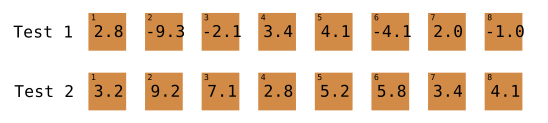
In the example above (test 1) there are 8 nodes, possible next moves, that have different board ratings from -9.3 to 4.1. If the computer is the black player, then it is going to first find the smallest one and choose this as the best node. The final board rate limit is then calculated using this best node and the computer player config coefficient value.
In this case the best node is -9.3, and with the coefficient or 0.1, the final rate limit is -0.93. This is then used to find all the nodes that have a board rating below this final rate limit.
The final nodes would end up being 2 (-9.3), 3 (-2.1), 6 (-4.1) and 8 (-1.0). It will pick a random node from one of these. Now let's do the same thing but for test 2. Here all the values are positive. The best node is 4 (2.8), and the final rate limit is 0.28. Now when I look through all the nodes to see which ones are below this one, there are none. The end result is that the list of final nodes is empty and it ends up throwing an exception.
Also, that final rate limit calculation is not creating the correct value, it needs adjusting to use the coefficient value in a different way so that 0.1 is the top 10%, and 0.6 is the top 60% (sort of).
The final rate limit is now recalculated using a different method. First, I take the best node's adjusted rating value, use the absolute function on it to make sure it is a positive value, and multiply this with the config coefficient value to end up with the final rate change value. Now I take this and remove or add it to the best node's adjusted value, depending on if the player is white or black, to end up with the correct final rate limit. This is then used as it was before, but now the value is set correctly, I no longer end up with a final node list that is empty.
Promoted Pawn
I don't know how I missed it, but when a human player moves a pawn to the end of the board, it gets promoted, but the user needs to select which type of piece to promote it to. I need to add a new dialog that shows all the possible pieces that the pawn can be promoted to and allow the user to select one.
I have added some more HTML to the web component containing a dialog that shows either the white or black pieces the user can select to promote a pawn.
Each button contains an IMG tag that is not currently set.
It will be set to the same SVG piece images that are shown on the board.
The styling for the promotion group element makes sure that the width of the dialog is within 20 to 50 percent of the page's total width. I also make sure the user cannot select any internal text within the dialog.
The dialog's header has a black background and white text to make it stand out.
Only the white or black group will be shown depending on which player is selecting the promoted piece. The promotion dialog element will have the class name "white-player" or "black-player" added to it before the dialog is shown. I have used this to hide the group that contains the pieces that are not relevant. Also, the group is set up to show a grid of 2x2 pieces.
Each button piece is made to be a square, with the inner SVG image centered and set to be 50% the size of its parent. The image element's pointer event property is set to none so that when it is pressed, the target value points to the parent button and not the image element itself.
So, I have the promotion dialog, but when do I show it?
When the user selects a pawn and then selects the location to move it, the _selectMove function is called.
I have changed this function so that it checks to see if the move is a pawn promotion or a pawn capture promotion.
If the move is one of these then I save the move being made, call the new _processPromotion function and then stop processing the move at this point.
Before the promotion dialog is shown I need to set the image source locations so that they point to the SVG images that are in the
same folder as the chess game web component source file.
The URL locations are set in the _updateBoard function and I am just reusing them here with the image elements.
The next part is to add the promotion dialog's "click" and "keydown" events. When the user selects one of the piece buttons, the click event will fire, but doing it this way (instead of doing it for each button) means it will also be fired when any other areas of the dialog are clicked. I can handle this later. I also make sure the promotion dialog element has the white or black player class name set. This is used to control which group of pieces are shown to the user. The final part here is to show the dialog.
The "keydown" event needs to be used so that the dialog is not cancelled if the user presses the Escape key. I only want the user to be able to select one of the promotion pieces, and to keep the dialog shown until that happens.
When the user selects one of the pieces to promote the pawn, this function is called, but because any part of the dialog could have been click,
I need to make sure only one of the buttons were clicked, which can be done by checking if the id property of the target element exists or not.
The next part is to work out which of the promotion piece buttons were selected by the user and set its related piece.
It is possible the promotion dialog element is being processed, as it also has an id property, but the switch statement will not find it,
and the piece value will remain unset.
I then remove the event listeners and close the dialog.
After that I need to create the final move object that includes the new piece that was selected. This depends on whether the move was a pawn promotion or the capture version. All the data is basically the same except for the promoted piece. I could have changed the move class to allow the promoted piece to be changed, by adding a setter, but that would have made the class a little ugly, because you can only create other move objects, not change them afterwards.
The final parts are the same as performing a normal move. The final promotion move is made to the board. The game is saved by updating the URL. The base element has the player class names removed to stop the user selecting any piece on the board while the move animation is being performed. The current piece is deselected. Then finally the move animation is started, which performs and ends the move.
Computer First Moves is a Knight
When the computer makes its first move, it is always moving the knight, instead of the more traditional pawn opening move. I want to limit the computer player to perform a pawn only opening move but to do this I need to know if this is its first move or not. At the moment this is not really possible. To help solve this issue I am going to add a move count to the board class.
In the Board class I have added a move count property.
This includes a getter and setter, and is also used when converting the board information into and from an encoded string.
I have added some extra testing to make sure the move count property works correctly.
In the MoveMaker class, in the function that updates the state after a move is made, I increase the move count.
So far everything has been simple.
Whenever a move is made, I can see the move count increase in the page's URL search parameter.
Now that I have the move count information, I want to use it to set the computer's opening move, whether they are playing white or black. This is done in two places, computer-player, which is the non-web version, and branch-worker, which is used when calculating the computer's next move with multiple workers, however they are basically the same set of functions doing the same type of thing.
Inside the function that works out the final move, I check to see if this is the computer's first move, for the white or black player,
and if it is then it calls the _workoutOpeningMove function.
This returns the opening move node, which I then process in the same way as the best final node.
When working out the opening move for the computer to make, I first check if the computer is playing white or black. By default, the opening move for the white player is to just move the king's pawn up two spaces. This is done by calling a function that looks at the root node's child for the node that matches the given parameters. This basically finds the move in the branch and returns it. This is the only move the white computer can make.
The opening move of the black player depends on which move the white player has just made. I first check if the white queen's pawn was moved up two spaces and make the black pawn perform the same move. I then check if the king's bishop's pawn moved up two spaces, and if so then I randomly select one of 5 different possible moves. If neither of these white pawns were moved, then the default black pawn is moved.
The function that finds the node for the opening move is straightforward. It loops through the root node's list of child nodes and compares the piece, and the from/to row/column properties to the given parameters. It must find the node, therefore I have not added a "not found" return at the bottom.
Computer vs Computer Fails
If I set players 1 and 2 to both be a computer player and start a new game, then I begin to see a game being played between them both. It looks fun to see the pieces moving automatically as the game progresses. That is until after about 5 to 20 moves when it just stops working. No errors, no reason for it stopping, nothing.
This is the worst type of issue to have, one that silently happens randomly, no triggered exception, no error is outputted in the console, you have no idea where the fault is, and using break points in the code doesn't help because it would be triggered thousands of times before something goes wrong. Is it something to do with the worker thread and timing, or is there a certain move that breaks something, or perhaps the underlining code has an untested unfound bug. By the time it stops working there can be over 10,000 nodes in the branch to look at. I can't go through them all in detail looking for faults.
After some debugging, lots of console logging, and running down endless rabbit holes, I finally worked out the problem and why it was random.
The function _startAnimation sets the square elements with class names to show the user that a piece is being moved.
It adds the class "move-piece1" and sometimes "move-piece2", which triggers the animation to begin.
The _animationEndEvent function is fired when the animation has finished, which will then complete the move on the board, and continue with the next player.
This works for both human and computer player, but was failing for some reason after about 20 moves.
The problem was, if the square element already had the class name "move-piece1", then it would not perform the animation,
and therefore would not trigger the _animationEndEvent function.
If the computer moved a piece from a square element that had already contained a piece that was moved,
then it would be adding the class name "move-piece1" to it even though it already existed, and therefore nothing would happen, no animation would run.
To solve the problem, I needed to go through all the square elements and remove the "move-piece1" class names.
The best place for this would be in the _animationEndEvent function,
as this is the opposite side of the start animation function where the class names are added.
After making this change, the computer players do continue playing with each other, without any problems.
It is interesting to watch them compete, playing a game of chess, though it isn't the best quality game I've ever seen. This marks the end of the game. It interacts with the user and allows them to play a game of chess against another human or a computer. It could be updated in the future to make it more user friendly, maybe create a 3D version, add remote human players to play online with other people, anything is possible.